You can only link your Instagram account to Facebook via the Instagram mobile app for iOS or Android. You can’t do it by signing into your Instagram account on the web at Instagram.com.
! NOTE: The instructions below can be followed by both iOS and Android users, but screenshots show the Instagram app for iOS.
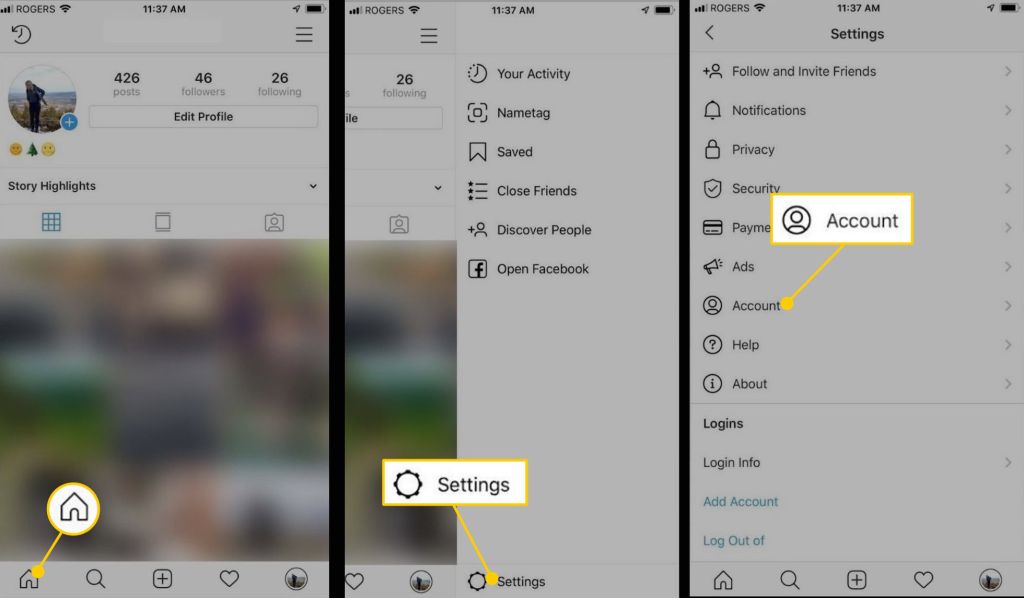
- Open the Instagram app on your mobile device and sign in or switch to your account if necessary.
- Tap the profile icon to the very far right in the bottom menu.
- Tap the menu icon in the top right corner of your profile.
- Tap the gear icon,then tap Settings at the bottom.
- Tap Account.
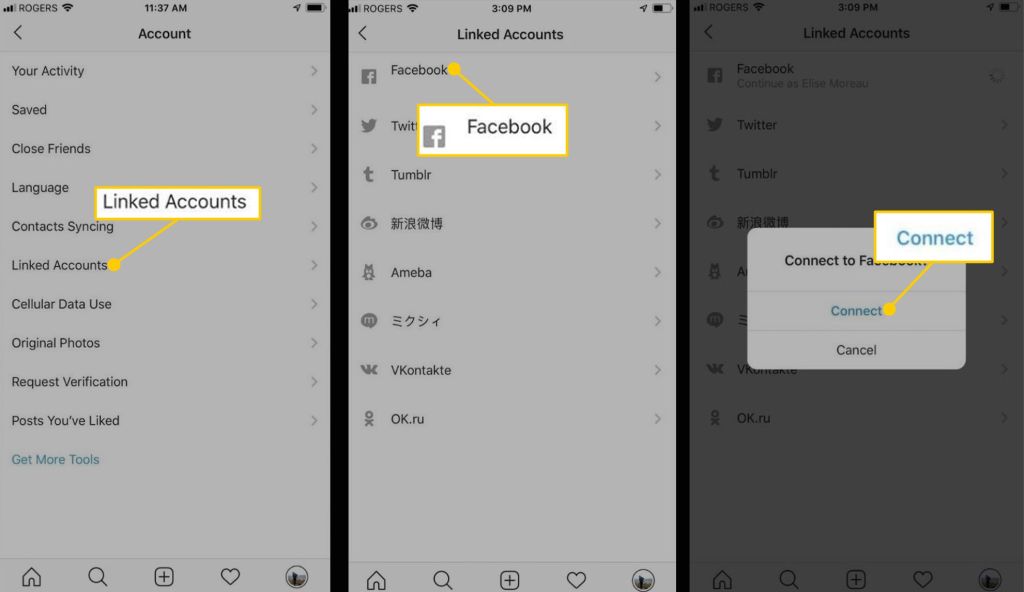
6. Tap Linked Accounts.
7. Tap Facebook and enter your Facebook login details.
8. Tap Connect.
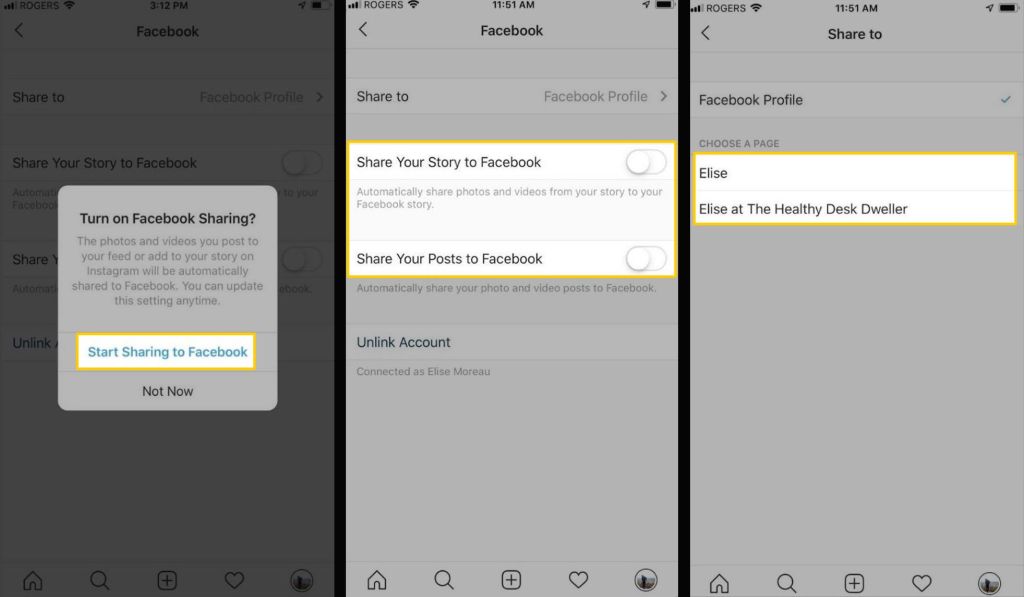
9. If you want to start sharing your Instagram posts and stories automatically to Facebook, tap Start Sharing to Facebook. If you want to leave this disabled and enable it later, tap Not Now.
TIPS: Tapping Not Now will still keep your Instagram and Facebook accounts linked, but now you can manually choose which Instagram posts you also want topost to Facebook. Whenever you create a new Instagram post and get to the caption tab, tap the Facebook icon to turn it on. (An additional popup might appear asking if you want to automatically share all posts—tap Not Now again to keep it manual).
10. On the Facebook tab, your Instagram account is connected to your Facebook profile by default, but you can change this so posts are sent to a Facebook Page you manage instead.
To select a page, tap Facebook Profile in the Share to column. A list of Facebook Pages you manage will appear on the next tab. Tap any page to select it so you can share your Instagram posts to it.
NOTE: You can only share your Instagram posts/stories to one Facebook profile or Page at a time. You can however choose to share only posts, only stories, or both. Simply tap the buttons beside Share Your Story to Facebook and Share Your Posts to Facebook to turn them on or off.
 TechRavelWinnie